Try Model Transform Tools (MTT)
Test drive the Model Transform Tools (MTT) to evaluate how graphical domain models transform into production-ready API specifications, schemas, and static documentation sites.
Evaluation Options
Select one of two pathways to evaluate MTT based on your workflow needs:
-
Option 1: Explore Example Projects
Browse pre-configured sample models (
Library,Property Ownership,Personal Details,Core Types) along with their auto-generated OpenAPI, GraphQL, and Markdown outputs. -
Option 2: Install GitHub App Trial
Connect the MTT GitHub App to your account to execute transformations on your own models and automatically commit generated artifacts back to your repositories.
Trial Account Capabilities & Limits
The trial version allows you to test real-world transformations directly in your GitHub repositories. Trial accounts include the following parameters:
- Model Complexity: Maximum of 7 classes per information model.
- Dependencies: Model references are limited to the official
core-typeslibrary. - Execution Quota: Up to 5 transformation runs per registered user.
- Production Access: To remove limits and create custom model libraries, subscribe via the GitHub Marketplace.
Setting Up MTT as a GitHub App
Follow these steps to authorize the MTT GitHub App and configure repository permissions:
Step 1: Initiate Installation
Navigate to the MTT GitHub App Installation Page and select the target GitHub personal account or organization where you plan to host your models.
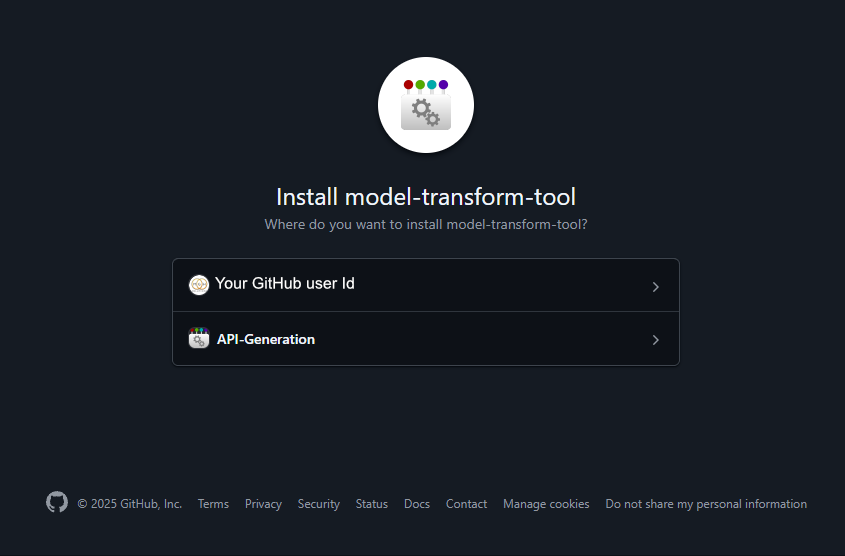 Figure 1: Account selection prompt for MTT installation.
Step 2: Configure Repository Permissions
Grant MTT access to either All repositories or select Only select repositories. Review the requested read/write permissions required for model parsing and committing generated outputs.
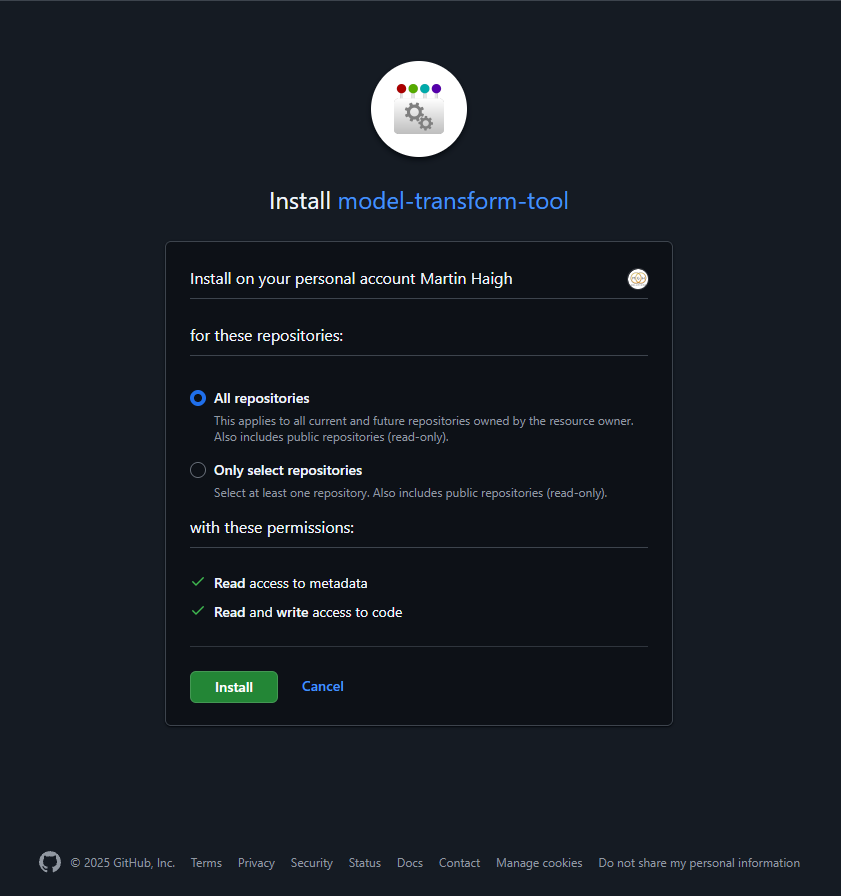 Figure 2: Configuring repository access controls and permissions.
Step 3: Verify Two-Factor Authentication (2FA)
If 2FA is enabled on your GitHub account, confirm authentication to complete the authorization handshake.

Figure 3: Two-factor authentication verification step.
Step 4: Installation Confirmation
Upon completion, GitHub displays the active installation status along with options to configure repository access, disable, or uninstall the app.
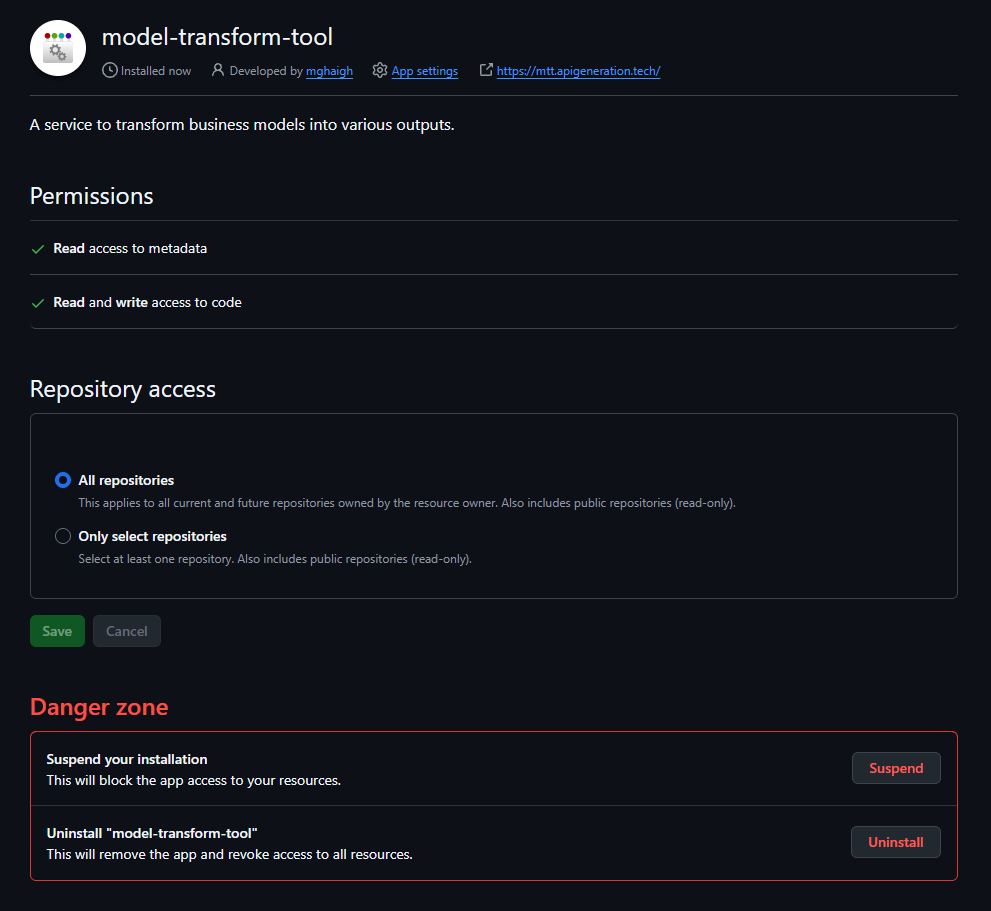 Figure 4: Confirmed MTT GitHub App installation dashboard.
Executing a Transformation Pipeline
Once the GitHub App is installed, test the transformation pipeline using the official Library sample repository:
1. Fork the Sample Repository
Navigate to the official API-Generation / Library Repository and create a Fork in your GitHub account (or download and push the contents to a new repository in your account).
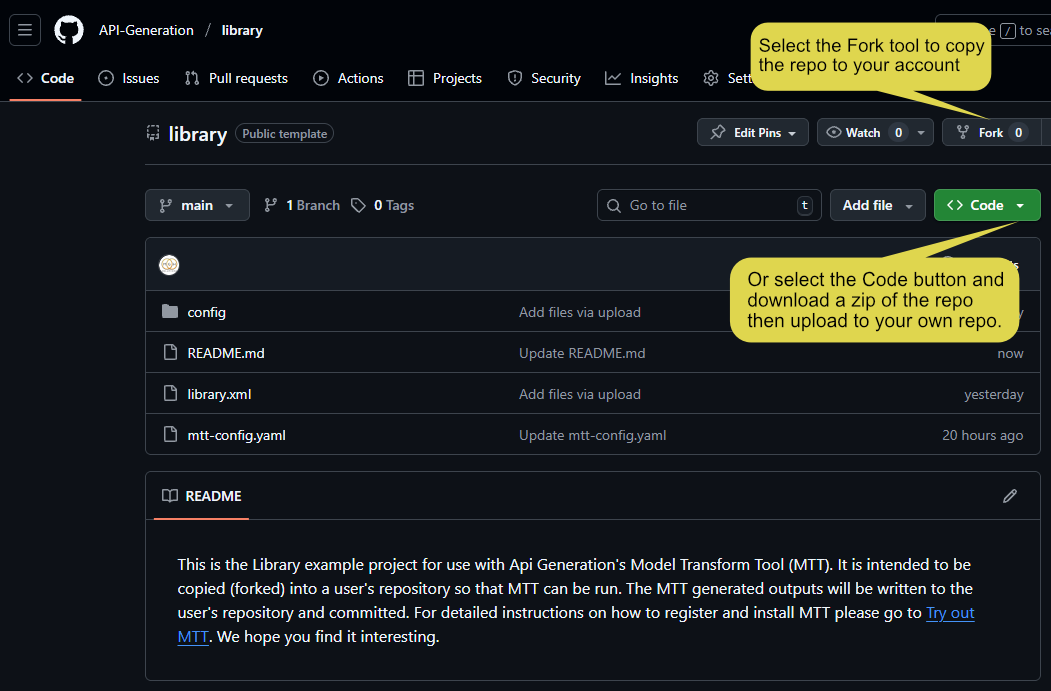 Figure 5: Official Library sample model repository on GitHub.
2. Configure Project Execution Rules
In your repository fork, edit mtt-config.yaml to specify target generation outputs, active model loaders, and branch commit rules. Commit and push your updates.
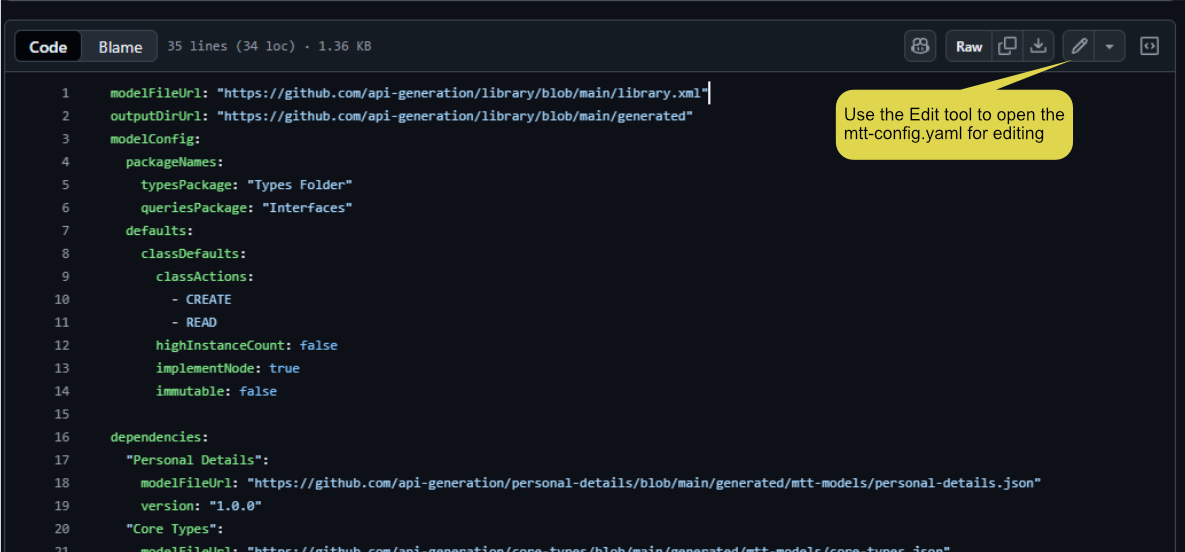 Figure 6: Customizing runtime settings in mtt-config.yaml.
3. Open MTT Manager Portal
Launch the MTT Manager Workspace. Select GitHub Projects to fetch your connected repositories.
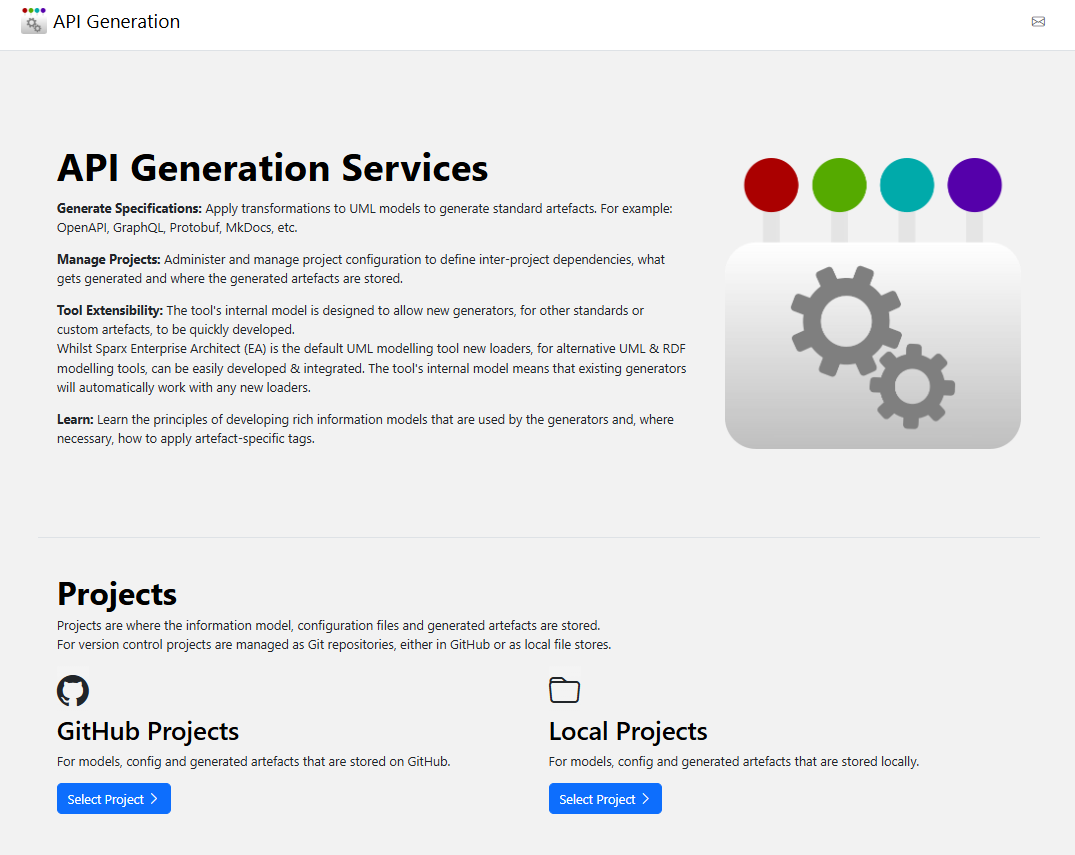 Figure 7: MTT Manager web application launchpad.
4. Select Project and Run Generators
Select your target repository from the dropdown menu, check the boxes for the desired output generators (e.g., OpenAPI, GraphQL, Protobuf, MkDocs), and click Run Generation.
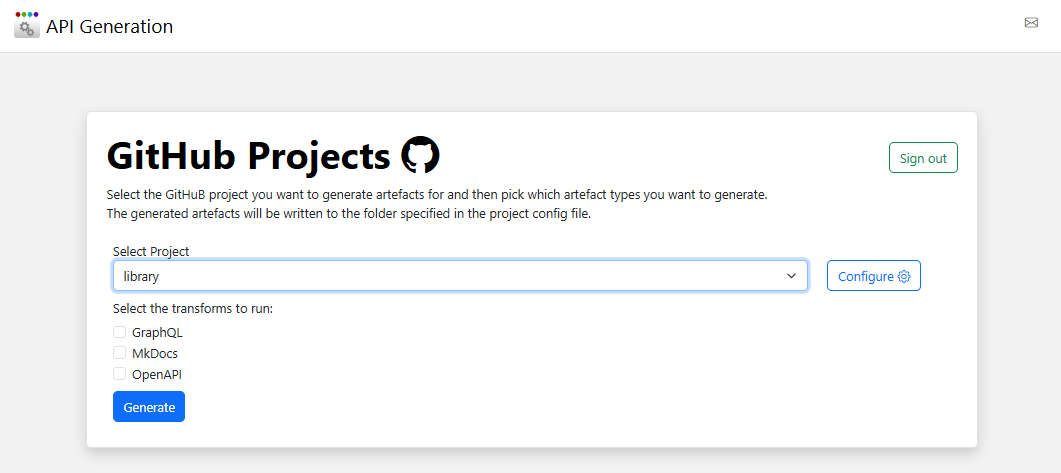 Figure 8: Triggering output generators for a GitHub project.
Documentation Build Times
When enabling the MkDocs Generator, MTT compiles complete multi-page documentation suites and writes a large file tree directly to your GitHub repository. This process may take 2–3 minutes to complete.
Next Steps
- Review repository file structures in Project Structure.
- Explore runtime output summaries in Running the Tool.